


What are Trigger Groups in Google Tag Manager?
You might have noticed a new addition to the Google Tag Manager interface this week, as Google released a new trigger type - Trigger Groups. Wondering what a Trigger Group...


You might have noticed a new addition to the Google Tag Manager interface this week, as Google released a new trigger type – Trigger Groups. Wondering what a Trigger Group is? Want to know how to create a Trigger Group? Maybe you’d like some example use cases? Read on…
What is a Trigger Group in GTM?
Trigger Group is a new trigger type recently added in Google Tag Manager. It gives us the ability to only fire a tag once multiple triggers have all been matched and carried out on the page. Previously, we could only tell a tag to fire if A OR B happened on the page. Now we can tell a tag to fire when A AND B have both occurred.
How Do You Create a Trigger Group?
Simply create a new trigger as usual, and when you get to the Trigger Type selection, scroll all the way down to the bottom and choose ‘Trigger Group’.

On the next screen, you can choose from your existing triggers to add to the group or you can create a new trigger which will then be added to the group.

You can add as many triggers as you like at this stage and they will all need to be successfully triggered on the page before the tag is fired. If they only complete one of the two actions, the tag won’t fire.
Example Usage of Trigger Groups
There are a few scenarios that spring to mind when setting up a trigger group.
You may want to set up a tag to track user engagement on your site that only fires when a user scrolls 75% of the way down the page AND they spend more than 30 seconds on the page. This would mean that you know they’ve read your content, as some people may instantly scroll to the bottom of your site when they first load the page – OR they might leave the page open in a browser tab and never scroll – so combining the two triggers into one trigger group will allow you to more accurately gauge how users interact with your content.
In the example below, we’ve set up a Trigger Group for users who have downloaded a PDF and have then clicked to send us an email. This would be considered a super-qualified lead, they were interested enough to download a PDF brochure AND they’ve sent us an email.
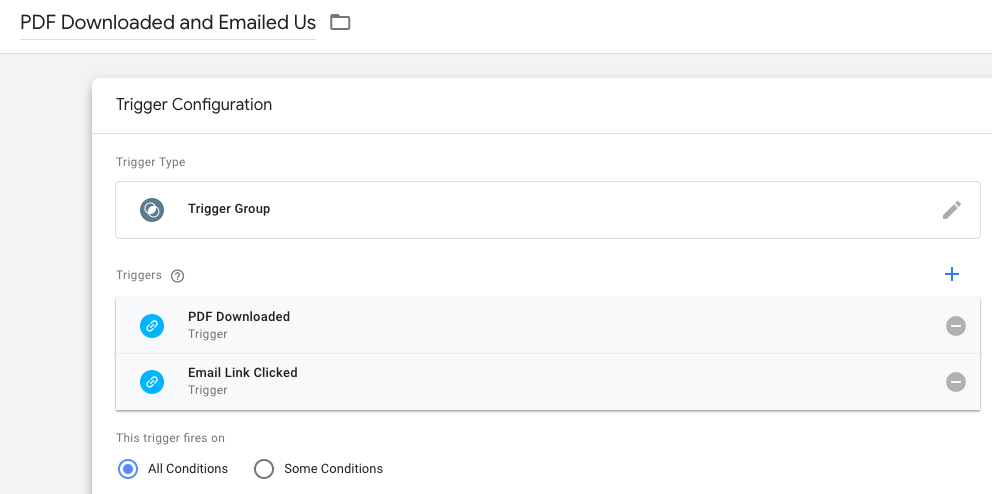
Important points to consider when setting up a Trigger Group:
-
- The actions all have to be completed on the SAME PAGE i.e. within the same page load. It’s not yet possible to create a Trigger Group where a user completes action A on Page X and action B on Page Y.
-
- You can add the same trigger multiple times to a Trigger Group, and if you do, that action must be completed the corresponding number of times in order for the Trigger Group to be fired. For example, if we added ‘PDF Downloaded’ to our Trigger Group twice, the user would have to download two PDFs and then send us an email.
-
- The order of the actions carried out are irrelevant – if a user carries out all actions for the triggers you’ve added, no matter the order, your Trigger Group will be matched and your tag fired.
-
- A Trigger Group will only be fired ONCE PER PAGE, no matter how many times the whole group is matched on the page.
Have you tried using Trigger Groups yet? Let us know in the comments below how you’ve used them – or if you’re having any problems, get in touch, we’re always happy to help.

Posted by
Michael Wilson
Michael is the Director of Strategy at GlowMetrics, implementing complex tracking for our largest clients via Google Tag Manager while steering our wider work across the Google Marketing Platform.
Read more from Michael WilsonBrowse by Category
- Social Media
- SEM
- SEO
- Google Ads
Digital Marketing
- Google Analytics
- Google Tag Manager
- Google Opimize
Digital Analytics

Optimise your website and marketing campaign performance with Ireland’s leading digital analytics agency
Sign up to our newsletterEnjoyed reading this article? Find more like it below…

Posted by
GlowMetrics Staff
Mar 20th 2019
Digital Analytics Insights
4 min read
The Advantages of Google Analytics 360 Suite
What is Google Analytics 360? Google 360 is an ecosystem built by Google to help understand WHO visits a website, the JOURNEY they make when they get there, as well...

Posted by
Michael Wilson
Jun 10th 2025
Digital Analytics Insights
5 min read
Complete Guide to Google Consent Mode v2
In the ever-evolving landscape of digital privacy, staying ahead of regulatory changes isn't just good practice – it's essential for maintaining effective marketing strategies. Google's Consent Mode - and in...
Posted by
Michael Wilson
Nov 16th 2020
4 min read
New Google Tag Manager Preview Mode (October 2020) – Tag Assistant
We like surprises, don't we? Whenever we spotted a surge of comments on forums and social media about a huge change to the Google Tag Manager interface recently, it definitely...
Leave a Reply