


css selectorsgoogle tag manager
How to Test CSS Selectors Using the Chrome Dev Console
If you've been using Google Tag Manager for a while, you've probably encountered a scenario where you want to distinguish between clicks on buttons that don't have unique IDs or...


If you’ve been using Google Tag Manager for a while, you’ve probably encountered a scenario where you want to distinguish between clicks on buttons that don’t have unique IDs or Classes. CSS Selectors allow you to create triggers in a more flexible way, targeting the building blocks developers use to style your website.
Say you want to narrow down your targeting and track clicks on a button that has a specific Class but there are multiple buttons on the page with the same Class and you just want the one that’s in a certain ‘div’. You’d use a CSS Selector in your trigger to do that.
This blog post isn’t going to be an exhaustive guide to CSS Selectors but there’s a handy reference guide we’d recommend here: https://www.w3schools.com/cssref/css_selectors.asp
If you wanted to track a button on a website, the first thing you’d do typically would be right-click on the button, click on ‘Inspect’ and then look at the code. If we take the ‘read more…’ button to the right of all of our blog posts (including this one!) as an example, we can see that it has the Class “button”.

However, there may be other buttons on the same page that use the same Class. Remember that CSS is primarily used to group elements together for the purpose of styling them consistently, so it’s more than likely that the Class you see on a button is not unique. So how do we check if there are other buttons on the page with the same Class?
Testing CSS Selectors Using the Chrome Dev Console
If you’ve right-clicked on an element and already have the Dev Console open, you just need to click on the ‘Console’ tab (to the right of ‘Elements’ in the screenshot above). Otherwise, you can get here by clicking on the three dots to the top-right of your Chrome browser -> More Tools -> Developer Tools.
Then you simply need to type this line in the Console:
document.querySelectorAll(‘.button’)
You can replace the CSS Selector in brackets with whatever the selector is you’re trying to test – the example above is how we will check to see how many buttons on this page have the Class ‘button’.
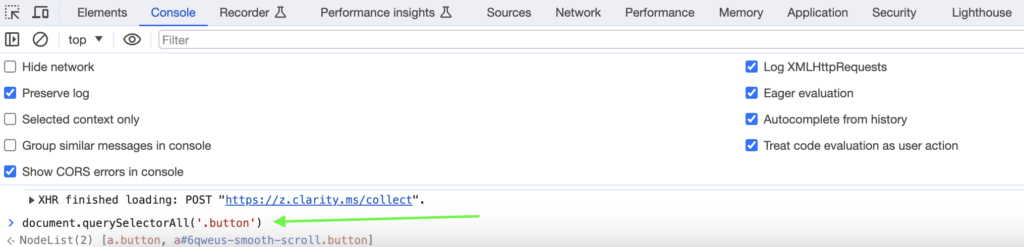
See the NodeList(2) line at the bottom? That means there are two elements on the page that match our CSS Selector! Good job we didn’t just assume it was unique to that button, eh?
You can click to expand this NodeList and you will see all of the elements that match your selector. You can even hover over each one and it will highlight that element on the page for you – see example below.
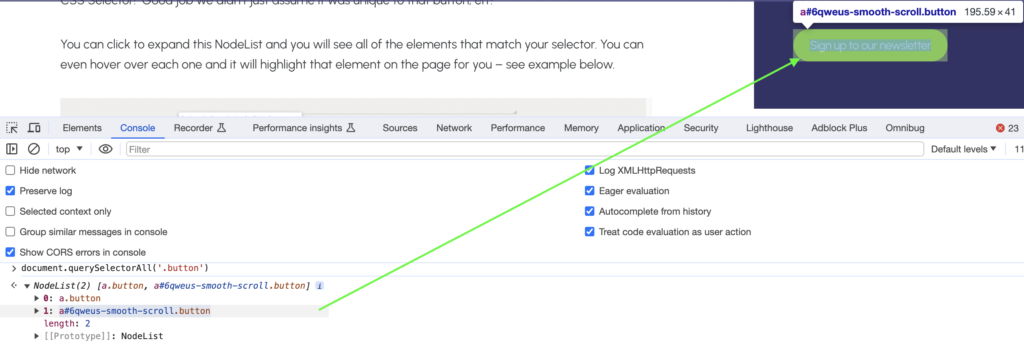
So how do we narrow our CSS Selector down to the one button only? We have to be more specific, to only look for buttons with Class “button” which are in the div within the first purple box to the right – take a look at the first screenshot in this guide to see how we know this.
So this time, we’ll use:
document.querySelectorAll(‘.purplebox:nth-child(1) .button’)

You can see this time, our CSS Selector only matches one element. So we now know this CSS Selector is unique to this particular button on the page.
How to Use CSS Selector in GTM Trigger
Now we know what our CSS Selector is for our button, we can use it in our trigger in GTM. If you want to use a CSS Selector in a trigger, you must always use the ‘Click Element’ variable to match it against, as per the example below.
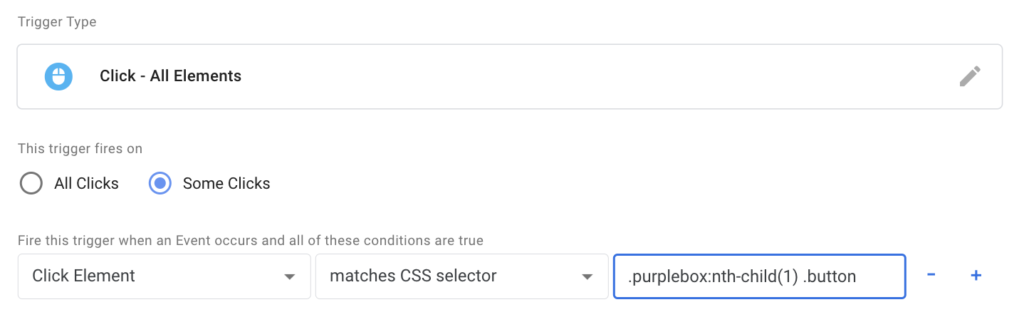
Hopefully, the steps above help you test your CSS Selectors quickly from within the Chrome Dev Console and allow you to implement them within your GTM triggers – if you have any problems following this guide, feel free to leave a comment below and we’ll advise as best we can!
Prefer to watch the video? Watch on YouTube
For early access to our videos, you can register for the GlowMetrics’ Resource Hub, and it’s completely free!
Want to Learn More?
If you’re interested in learning more about tagging strategies or require support with Google Analytics or Google Tag Manager, feel free to leave a comment below or drop us a line at [email protected]. You can also stay up-to-date by following GlowMetrics on Twitter or LinkedIn or by subscribing to our newsletter (see link below) for the latest tips and news in the world of digital analytics and marketing.
Don’t forget to sign up for a complimentary account on our Resource Hub to access a wealth of valuable resources, including exclusive digital analytics and digital marketing how-to videos and insights!
2 responses to “How to Test CSS Selectors Using the Chrome Dev Console”
Leave a Reply

Posted by
Michael Wilson
Michael is the Director of Strategy at GlowMetrics, implementing complex tracking for our largest clients via Google Tag Manager while steering our wider work across the Google Marketing Platform.
Read more from Michael WilsonBrowse by Category
- Social Media
- SEM
- SEO
- Google Ads
Digital Marketing
- Google Analytics
- Google Tag Manager
- Google Opimize
Digital Analytics

Optimise your website and marketing campaign performance with Ireland’s leading digital analytics agency
Sign up to our newsletterEnjoyed reading this article? Find more like it below…

Posted by
Conor Ross
Dec 14th 2020
Digital Analytics Insights
4 min read
How To Extract Themes from Images in Data Studio
Presenting data in a more visually engaging way is becoming more and more popular as people realise the benefits of creating data dashboards that are visually appealing, easier to read...

Posted by
Michael Wilson
Sep 20th 2022
Digital Analytics Insights
4 min read
Does FBCLID affect GA4? Remove FBCLID + Other Unwanted Query Parameters in GA4
FBCLID is Facebook's Click Identifier - a query parameter appended to all links posted on Facebook since 2018. In response to browsers clamping down on third-party cookies, this FBCLID identifier...
Posted by
Conor Ross
Dec 3rd 2021
Google Analytics
6 min read
Reference Lines and Trend Lines in Looker Studio
Staying up to date with the latest features, additions and refinements to Google’s data visualisation platform, Looker Studio, can be a tough task. Rarely does a week go by without...
Easier syntax is $$(”) i.e. $$(‘div > li’)
or just $(‘div > li’) to get just the first match
You may type “allow pasting”, before copy and paste document.querySelectorAll(‘.button’) or similar.
https://rjroopal.medium.com/stay-secure-with-chromes-new-paste-protection-3f80c82f9dcf#:~:text=To%20paste%20code%20into%20the,pasted%20and%20nothing%20will%20happen.