


Creating Custom Insights in GA4
For most of us, Google Analytics is the go to tool to generate insights and detect any changes or anomalies in your data, but sometimes all that data can be...


For most of us, Google Analytics is the go to tool to generate insights and detect any changes or anomalies in your data, but sometimes all that data can be overwhelming. Is there a way to provide some clarity and be proactive when looking at changes in your data. Luckily with GA4’s custom insights, the answer is yes!
What are Custom Insights?
At the moment, GA4 offers two types of insights – automated and custom. Automated insights use GA4’s machine learning algorithm to identify trends in your data, like an unusual rise or fall in traffic or revenue. You can find automated insights at the bottom of your GA4 homepage. Custom insights let you set up your own conditions, giving you greater control over the type of insights that you want to see and are important to you. GA4 provides templates for suggested custom insights but you can also create your own from scratch. You can create up to 50 custom insights per GA4 property and probably the most helpful aspect of this feature is that you can set up email alerts for multiple addresses so that you are notified when the conditions of your custom insights are met.
Where to Find Custom Insights
So where can you find custom insights?
Open your GA4 property homepage and scroll down to the ‘insights and recommendations’ section at the bottom and click ‘view all insights’.
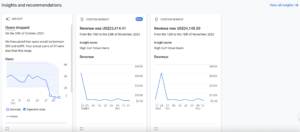
This brings you to your Insights dashboard, where you can see your GA4 property’s most recent insights, both automated and custom. The dashboard refreshes in real time when conditions for your custom insights are met, as well as when GA4’s machine learning algorithm identifies new automated insights.
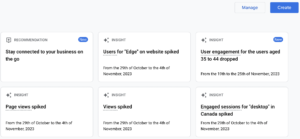
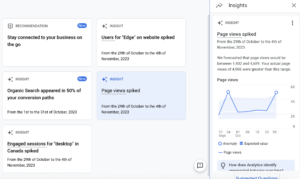
You can click on the insight cards found here to expand and see the full details to the right of the screen.
How to Create Custom Insights
To create your own custom insights, click ‘create’ when in the insights dashboard. You need to have at least an analyst role to create a custom insight.
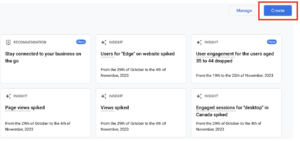
You can choose between creating insights from the five suggested options or start from scratch. If you choose the suggested custom insights, you have the option to create them as they are, or select ‘review and create’ to us the suggestions as a template.
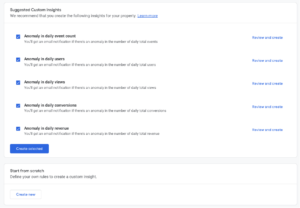
There are three steps to creating a custom insight, whether you choose to use a suggested template or create one from scratch: setting conditions, choosing a name, and managing notifications.
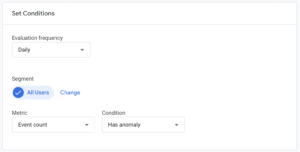
Setting the conditions is the most important part of this as this will define when and what is shown in your insights. Firstly, select the evaluation frequency which determines how often GA4 will check the conditions. You can choose between hourly, daily, weekly or monthly. Next, select a segment to choose which groups of users should be included in the insight. This will be set to all users by default so click ‘change’ to use the segment builder to add up to 5 conditions. Finally, choose the metric e.g. ‘conversions’, ‘views’, etc. and its condition e.g. % increase, % decrease, % change is more than, etc. If using a percentage you’ll also need to set a comparison period to either yesterday, same day last week or same day last year.
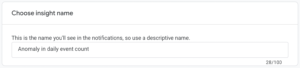
Then name your insight with a clear title that will be understood by anyone receiving the notification.
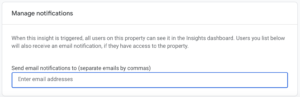
The final step is to add the email addresses of those you want to be sent notifications by entering each of their email addresses separated by commas.
Once you’ve completed these steps, hit create and you’re done! Your new insights will show up in your insights dashboard and in your list of custom insights.
For more on GA4, check out our 12 Simple Steps to Exclude Internal Traffic from GA4. If you have any questions or there’s anything else we can help with on GA4, please leave a comment below, or contact us at [email protected]. You can also follow us on @GlowMetrics or subscribe to our newsletter for more tips and news within the world of Digital Analytics and Marketing.

Posted by
Hannah Magorrian
Hannah is a Digital Analytics Executive at GlowMetrics, working on creating data dashboards and assisting on wider analytics work across Google Analytics and Data Studio.
Read more from Hannah MagorrianBrowse by Category
- Social Media
- SEM
- SEO
- Google Ads
Digital Marketing
- Google Analytics
- Google Tag Manager
- Google Opimize
Digital Analytics

Optimise your website and marketing campaign performance with Ireland’s leading digital analytics agency
Sign up to our newsletterEnjoyed reading this article? Find more like it below…

Posted by
Sadia Parveen
Jul 19th 2023
Digital Marketing Insights
3 min read
5 Features We Love About GA4
We’ll be honest – the transition to GA4, Google’s next-generation measurement solution, from Universal Analytics, has posed its fair share of challenges – some that are proving to be especially frustrating...


Posted by
Anna Growcott
Oct 13th 2017
Digital Marketing Insights
2 min read
How to Link To LinkedIn from Data Studio
Googles relatively new tool, Google Data Studio, allows you to create branded reports with beautiful data visualisations to share with your clients. Not heard of Google Data Studio? Check out...
Leave a Reply