


gclidgoogle adsgoogle tag manager
How To: Collect GCLID from Google Ads in GA4 via GTM
If you’ve been wondering how to store the GCLID parameter from your user’s Google Ads clicks in GA4, this is the guide for you.


If you’ve been wondering how to store the GCLID parameter from your user’s Google Ads clicks in GA4, this is the guide for you. If you’ve found your way here and you’re wondering why you would want to do that, let’s explain.
What is GCLID?
GCLID is Google’s Click Identifier – a key element for successfully tracking your Google Ads performance. It tie’s a user’s ad click which brings them to your website back to the original ad they clicked on, allowing you to piece together which campaigns, keywords, ad sets etc are successfully driving sales or conversions on your website.
Why store GCLID in GA4?
The core function of the GCLID parameter is to measure the success of your Google Ads campaigns, primarily for Google Ads reporting within its own interface. GA4 typically identifies Google Ads traffic successfully within its attribution reports without over-engineering a solution (like we’re about to!)
That being said, there may be times where you have a particularly long lag between a user clicking on your ad and deciding to make a purchase or signing up for your services – probably not an issue if you’re selling socks but might be an issue if you’re selling houses, cars or some other high value item that people may spend significant time researching before they commit.
GA4 does have its own Attribution Path reports which will show you how various channels have worked together if a user has visited your site multiple times from multiple different sources prior to converting but if your main interested is showing the value of your Google Ads campaigns, you may want to collect the GCLID parameter in GA4 as a User Scoped Custom Dimension. This means that once that user has been associated with a GCLID, you will know they’ve come in from a Google Ad at some point and any future conversion can be tied back to Google Ads, even if they have come back via another channel since then.
How to store GCLID in GA4 via Google Tag Manager
As long as you have auto-tagged enabled in Google Ads, the GCLID parameter will be appended to the URL when the user clicks on your ad and lands on your website. The value with any URL parameter can be captured using Google Tag Manager and sent to any data collection end point – in this case, we want to collect the GCLID parameter and send it to GA4.
1. In GTM, create a new variable – Variable Type = URL, Component Type = Query, Query Key = gclid

2. We then need to set up a tag to send that new variable to GA4 as a User Property. The easiest way to do this is by using a dedicated event specifically for this purpose but you could also send it along with a pageview if you prefer – that might be a little neater. As a simple example, we’re creating a new event here called ‘gclid_pickup’.
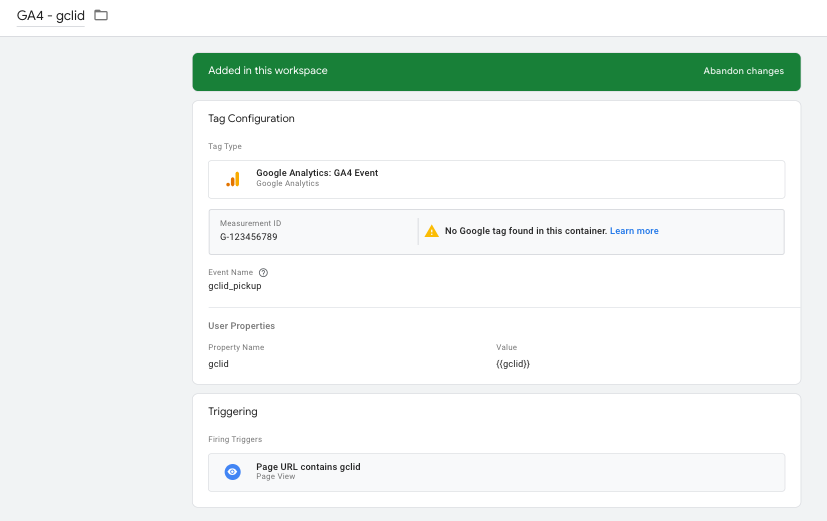
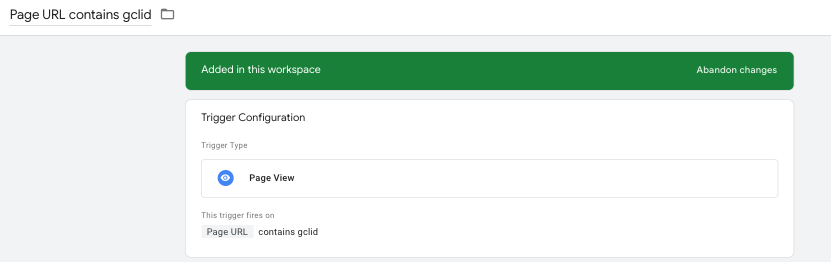
3. The trigger for this tag should be… Page URL contains ‘gclid’ so it only fires if there is a gclid parameter in the URL.
4. The final step is to create a new User Scoped Custom Dimension within the GA4 interface itself. If you skip this step, you won’t see this data in GA4 anywhere – you need to do this to actually expose it in the reports.

This should allow you to see the value of the GCLID parameter within your GA4 reports – if a user has come in from clicking on a Google Ad. One small caveat here, if the user comes in from clicking on multiple ads, the value of the GCLID associated with that user will always be from the most recent ad click. This shouldn’t be a problem if your primary aim here is to show the value of your Google Ads campaigns for products/services with long lead times but something to note nonetheless.
Want to Learn More About Google Tag Manager?
For more on Google Tag Manager, check out our blog on FBCLID (Facebook’s Click Identifier) and how it impacts GA4 data or How to Add a Google Ads Conversion Linker tag. If you have any questions or there’s anything else we can help with on Google Tag Manager, please leave a comment below, or email [email protected].
You can also stay up-to-date by following GlowMetrics on Twitter or LinkedIn or by subscribing to our newsletter (link below) for the latest tips and news in the world of digital analytics and marketing.
Don’t forget to sign up for a FREE account on our Resource Hub to access a wealth of valuable resources, including exclusive Google Tag Manager how-to videos and insights!
6 responses to “How To: Collect GCLID from Google Ads in GA4 via GTM”
Leave a Reply

Posted by
Michael Wilson
Michael is the Director of Strategy at GlowMetrics, implementing complex tracking for our largest clients via Google Tag Manager while steering our wider work across the Google Marketing Platform.
Read more from Michael WilsonBrowse by Category
- Social Media
- SEM
- SEO
- Google Ads
Digital Marketing
- Google Analytics
- Google Tag Manager
- Google Opimize
Digital Analytics

Optimise your website and marketing campaign performance with Ireland’s leading digital analytics agency
Sign up to our newsletterEnjoyed reading this article? Find more like it below…

Posted by
Kyle Crooks
Aug 8th 2023
Digital Analytics Insights
3 min read
A Guide to Audience Signals in GA4
To put it simply, the Audience Signal feature in GA4 is a method of collecting additional data on Google Users who are signed into their Google account or have Ad...

Posted by
Michael Wilson
Jun 24th 2016
3 min read
Top 5 Google Tag Manager Mistakes
Google Tag Manager is a really useful tool – it’s allowed us to help our clients get more out of their analytics implementation and has allowed their marketing teams to take...

Posted by
Hannah Magorrian
May 22nd 2024
Digital Analytics Insights
3 min read
A Guide to New Chart Types in Looker Studio
If we’re being honest, we all have our favourite charts in Looker Studio. It can be easy to stay in our visualisation comfort zone with bar charts, pie charts, and...
Hello
I have a problem with my report about “gclid” in GA4, i just see apart of gclid, for example: Cj0KCQjwrKu2BhDkARIsAD7GBos1JJsjKS1s . I don’t see full of query gclid. I have already double check in GTM, It’s almost look like your the way. Please help me check.
If you have set it up as a User Property, the max length of the value will be 26 characters. Try setting it up as an Event Property instead, those can be up to 100 characters…
Hi Michael,
I tried to set up Event Property instead, but it doesn’t work with parameter – gclid. Moreover, there is no such parameter in the list of pre-defined event parameters. What should I do in that case?
I performed all other steps as described above.
Do you mean when setting up the Custom Dimension? If so, it won’t appear in the pre-defined list, you just have to type it into the box manually.
Hi, great blog by the way.
I am using two websites for my google ads, one is a one page landing page and the outbound link leads to my destination website where the conversion happens. i can’t use cross domain tracking to pass the data back too google ads and it won’t work. so i’m trying to pass the data of my gclid using cHTML dynamicly to my next website but it won’t work and I haven’t been able to troubleshoot it yet.
do you guys know a way i can make this happen?
thank you 🙏
Why can’t you use cross-domain tracking in this instance? You could probably append the gclid to the outbound link as a parameter and pick it up from there but it’s over-engineering a solution that cross-domain is intended for…